Best Veterinary Practice Software for Tablet 2026
How to find the best veterinary practice management software for tablet and iPad use in 2026, and how to tell real touch design from a browser window.

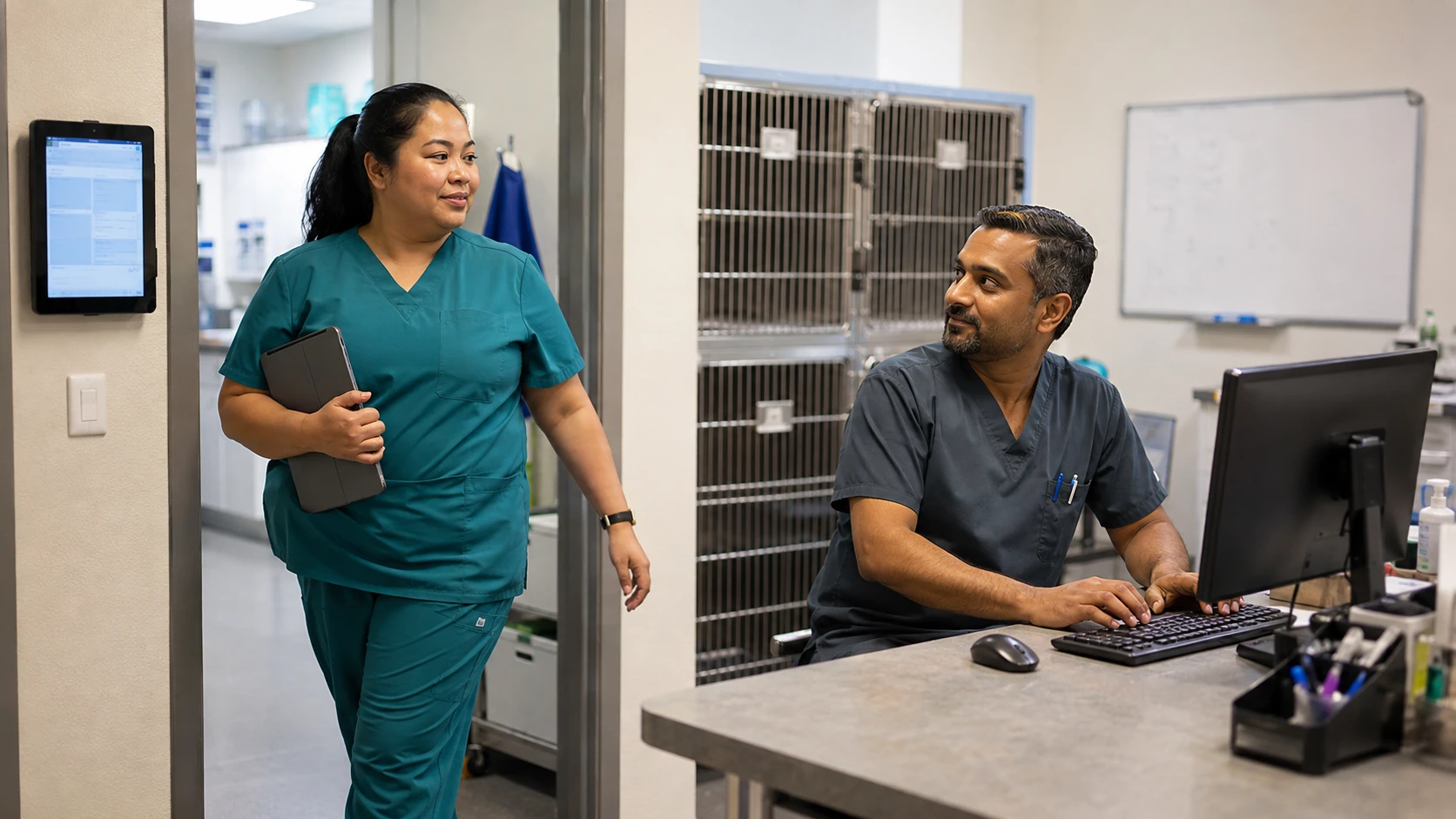
It is 8:15 on a Tuesday and exam room two at a three doctor practice in central Ohio has no computer in it. That was deliberate. During the renovation the practice pulled the desktops out of both exam rooms to free counter space and stop doctors from turning their backs on clients. The replacement was a pair of iPads in rugged cases. This morning a technician is adding a rabies vaccine to an invoice on one. She taps the search field, the keyboard slides up and covers the product list, she rotates to landscape for room, and the dialog resets to the top. Ninety seconds later she walks to treatment and does it at a workstation. The iPads are still mounted in the rooms. Nobody uses them for anything but showing radiographs.
Searches for the best veterinary practice management software for tablet use keep climbing for exactly that reason. Practices are designing physical space around mobile devices before confirming that their software supports the workflow. The exam room without a desktop is now a common design choice, and stand-up treatment stations, cage-side charting, and wall-mounted hospital sheets are standard requests in new construction. The hardware is cheap enough that nobody agonizes over it. The software is where the plan breaks.
The gap is that "runs in a browser" and "designed for touch" are two entirely different product claims, and almost every cloud vendor in the veterinary market can honestly make the first one. Nearly every cloud-native veterinary platform will load on an iPad. Far fewer were built with a set of interface decisions that hold up when the person using them has wet hands, is standing, is holding a cat with the other arm, and needs to complete a task in eleven seconds rather than forty. Evaluating tablet readiness is a specific skill, it is rarely covered in a standard demo, and it is almost never in a vendor's feature matrix.
This article is published by VetSoftwareHub, an independent vendor-neutral directory with no financial relationship with any of the companies covered here. We do not accept referral fees or equity positions, and we do not steer practices toward any particular product. What follows is a plain-language overview of the landscape.
The core challenges in tablet-friendly veterinary software
The first structural issue is that responsive design and touch design solve different problems. Responsive design is about layout. It makes a page reflow so that columns stack and nothing gets clipped when the viewport narrows. Almost every modern web application does this competently, because the frameworks handle most of it automatically. Touch design is about interaction. It governs how big the targets are, whether a control that relies on hover has a tap equivalent, how the application behaves when the on-screen keyboard consumes forty percent of the screen, and whether a workflow that assumes a mouse and a keyboard can be completed with a thumb. A product can score perfectly on the first and poorly on the second, and buyers mistake one for the other during demos because the sales engineer is showing them a scrolling page rather than a completed task.
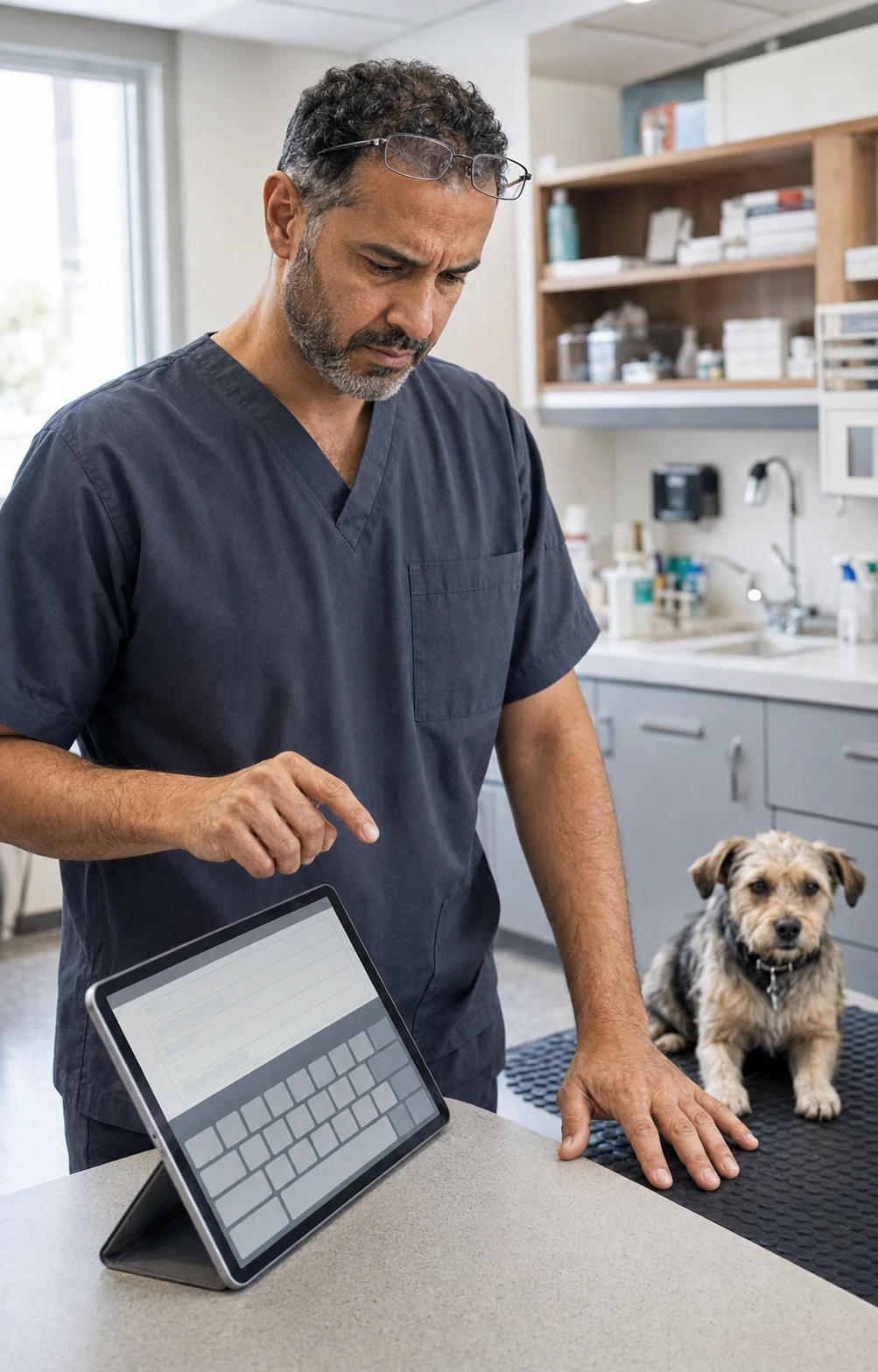
The second issue is that veterinary software has an unusual density problem. A treatment sheet for a hospitalized patient is a grid. A hospital status board is a grid. An invoice with thirty line items is a grid. Grids are the hardest pattern to make work on a ten inch screen, because the information is meaningful only in relation to the rows and columns around it, and the obvious mobile fix of collapsing everything into stacked cards destroys exactly the comparison the grid existed to support. Vendors who have solved this generally used horizontal scroll with frozen columns, or built a separate tablet view. Vendors who have not either shrink the grid until the text is unreadable or force panning across the whole screen.
The third issue is that the tablet use cases inside a single practice are not the same use case. A doctor charting in an exam room needs fast text entry, template access, and quick history lookup. A technician at a treatment station needs to mark tasks complete against a hospital sheet without typing at all. A receptionist on a counter tablet needs signature capture and payment. A mobile or relief doctor needs the whole system on one device with tolerable behavior when the connection drops. Software that serves one of these well can be miserable at another, and practices that treat "tablet support" as a single yes or no question end up disappointed by the parts they never tested.
The three categories of tablet support in veterinary PIMS
The honest answer is that tablet support in this market falls into three structurally different buckets, and knowing which one a product is in tells you more than any feature list.
Native or companion tablet applications
The first category is software that ships an actual application built for the device, either as the primary interface or as a companion to a web product. These applications reach the operating system in ways a browser cannot. They cache data locally, handle intermittent connectivity gracefully, use the camera and microphone without a permissions dance, and present controls that match platform conventions so they feel correct rather than approximate.
In the veterinary market this pattern shows up most often as a purpose-built companion rather than a full replacement for the desktop product. ezyVet, for example, offers a field-focused iPad companion designed for work outside the hospital, including access to patient history when the connection is unreliable. Instinct EMR has built its treatment sheet and status board around touch operation because its core customers are emergency and specialty hospitals where the tablet is the primary charting surface, not a secondary one. DaySmart Vet has long marketed mobile access as a core capability rather than an afterthought, and it is a common choice among mobile and mixed practices for that reason.
The advantage is that the experience is usually the best available for the tasks the companion covers. The disadvantage is scope. A companion is almost never feature complete against the desktop product, so your team learns two interfaces and has to know which tasks live where. Get an explicit written list of what the companion cannot do.
Browser-based cloud-native platforms with strong touch behavior

The second and largest category is cloud-native software that runs in the tablet's browser and was built with enough touch discipline that it holds up in daily use. There is no separate application to install and no feature gap to manage, because you are using the same product the desktop users are using.
This is where most of the current market sits. Shepherd, Provet Cloud, Vetspire, NectarVet, Digitail, and Lupa are all browser-based platforms a practice can reasonably run on a tablet, and several are used that way routinely by house-call practices. Digitail in particular draws consistent comment from mobile veterinarians who work primarily from a tablet or phone. Our mobile veterinary software buyer's guide covers how these platforms behave specifically for field work, which is a stricter test than in-clinic tablet use because connectivity is less predictable.
Quality inside this category varies more than the category label suggests. Two products can both be cloud-native, both load fine on an iPad, and differ enormously in how many taps it takes to record a treatment. That variance is the single most important thing to test, and it is why the demo questions later in this article are worth asking directly. The cloud-based veterinary practice management software guide explains the underlying architecture distinctions in more depth, and the full 2026 best PIMS buyer's guide covers how each of these platforms positions itself for different practice types. Every product named in this section is listed in the practice management category of the directory.
Remote access to desktop software
The third category is not really tablet software at all. It is a legacy Windows application delivered to a tablet through a remote desktop session or a hosted virtual machine. Avimark, Cornerstone, and Impromed all have hosted deployment options, and all three can technically be reached from an iPad through a remote desktop client but it would be far from a great experience.
This works in the narrow sense that pixels appear and the application responds. It is not a tablet experience. You are driving a mouse pointer with a fingertip across an interface sized for a mouse. Right-click menus, keyboard shortcuts, and small toolbar icons are central to how those products work, and none of them translate. Practices that try it end up carrying a Bluetooth mouse and keyboard, at which point they have built an awkward laptop. If you are on one of these systems and tablet workflow is a priority, the realistic path is a platform change rather than a deployment change, and the migration playbook is worth reading before you start that conversation.
Key features that separate genuinely touch-friendly vet PIMS
Six things determine whether a product survives contact with an exam room. None of them appear on a standard feature comparison chart, which is precisely why they are worth checking yourself.
Tap target size and spacing
The published platform guidance is that an interactive control should be at least forty-four points square on iPadOS and forty-eight density-independent pixels on Android, with meaningful space between adjacent controls. Veterinary interfaces routinely violate this in dense areas like invoice line items, where a delete icon and an edit icon sit a few pixels apart. The consequence is not aesthetic. It is a technician deleting a charge she meant to edit, on a patient she is holding with one arm, and not catching it until the invoice comes up short at checkout. During the demo, ask for the tablet and delete a single line from a fifteen line invoice without zooming.
On-screen keyboard behavior
This is the most common failure and the easiest to test. When you tap into a text field, the keyboard occupies roughly a third to a half of the screen. Well-built applications scroll the focused field above the keyboard and keep it there. Poorly built ones leave the field hidden behind the keyboard, or scroll it into view and then lose the position when you type the first character. Test it on the fields your team uses most: the SOAP note body, the product search on an invoice, and the client note field. If any of them fail, that failure will happen forty times a day per user.
Orientation and layout persistence
Tablets get rotated constantly, because portrait suits reading a record aloud to a client and landscape suits a treatment grid. The question is whether the application survives it. Some products reflow cleanly and hold scroll position and open dialogs. Others reload the view, discard unsaved input, or do not support portrait on certain screens. Rotate the device mid-task during every demo, ideally with half a note typed.
Text entry alternatives
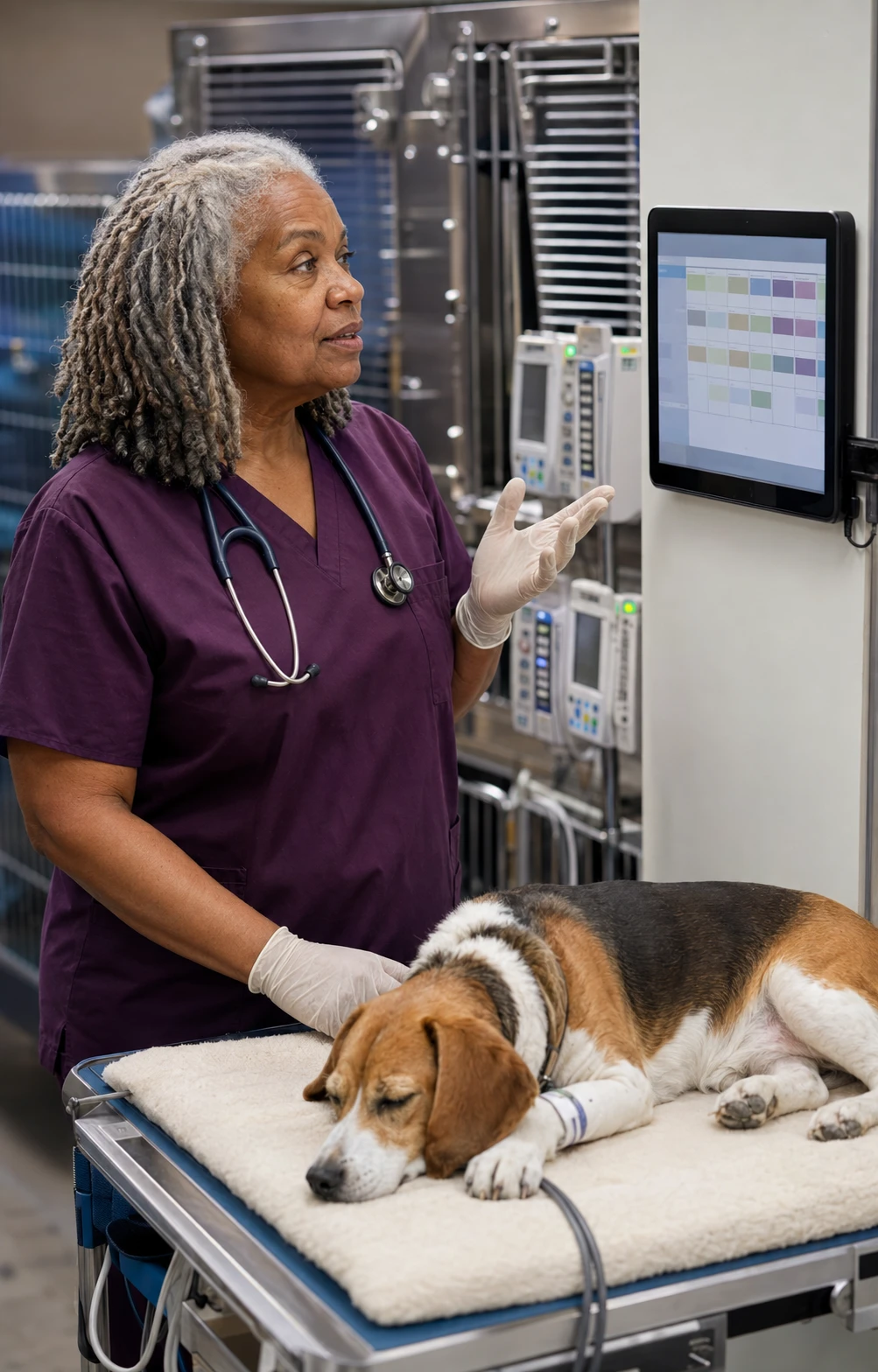
Typing a full SOAP note on glass is unpleasant enough that teams will avoid it, which means charting migrates back to the workstation and the tablet investment stops paying off. The mitigations are dictation, structured templates with pick lists, and AI scribe integration. Most of the cloud-native platforms now have at least one of these, and several have all three. Confirm that dictation works in the fields you care about rather than only in a single notes box, and confirm which scribe products are supported if you already use one or plan to. If you are buying a scribe separately from the PIMS, that is a second per-doctor subscription and belongs in the budget conversation rather than the feature conversation.
Connectivity tolerance
Hospital Wi-Fi is not uniform. Concrete walls, lead-lined radiology rooms, and stainless steel tables all interfere, and most practices have at least one dead zone. The relevant question is not whether the software works offline, because for most in-clinic products it does not. It is what happens during a fifteen second dropout while a form is half filled. Good behavior is a queued save and a visible warning. Bad behavior is silent data loss. Ask the vendor, then ask their reference customers separately, because vendors answer this more optimistically than their users do.
Peripheral and hardware integration
Practices that go tablet-first still print labels and receipts, capture signatures, read microchips, and take payment. Confirm how each works from the tablet specifically. Label printers are the usual sticking point, because many veterinary label workflows still assume a Windows print driver. Some vendors solve it with a cloud print service, some with a bridge application on a nearby workstation, and some have not solved it. Payment terminals and signature capture are generally better handled, but verify with your actual processor rather than in the abstract.
The hardware question: iPad, Android, or Windows convertible
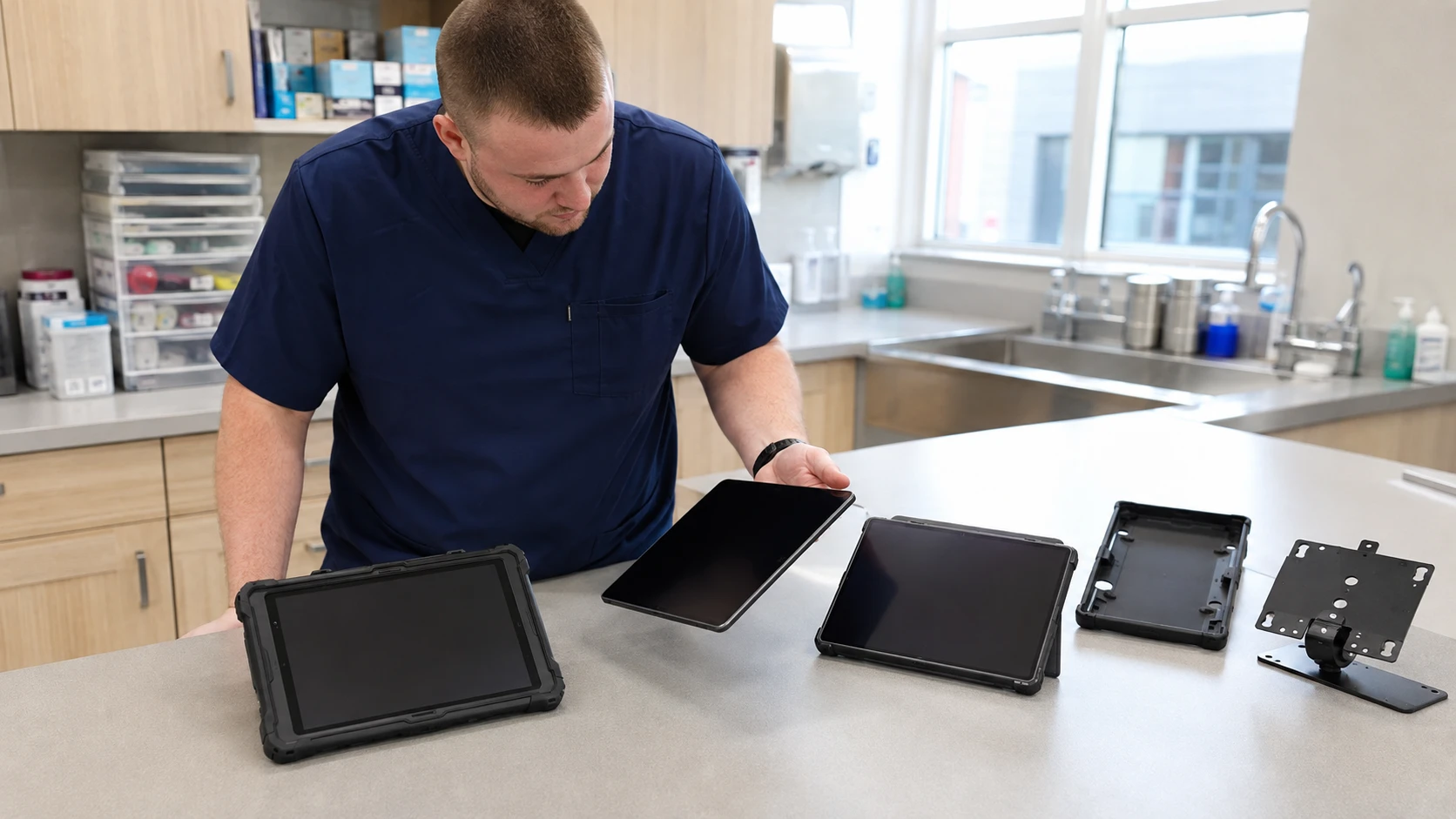
The software decision should come first, but the hardware decision is not trivial and it interacts with the software choice.
An iPad is the default for most practices, for reasons beyond familiarity. Vendors who build a native companion build it for iPadOS first, so if your product has one, an iPad is likely the only way to get it. Apple's tablet support window is long, which matters when a device bought in 2026 still needs security updates in 2031. Rugged cases, wall mounts, and stands are also more plentiful. The current lineup runs from the base model in the mid three hundreds up through the iPad Air at five hundred ninety nine dollars for the eleven inch version, and for practice management the base model is generally sufficient. You are running a browser, not editing video.
Android tablets are meaningfully cheaper at the entry level, which matters when you are deploying eight rather than two. The tradeoff is update life. Budget Android tablets often stop receiving OS updates in three or four years, short for a clinical device, while flagship models now carry much longer support commitments and cost accordingly. If you go Android, buying at the higher end is usually the better total cost decision even though it looks worse on the purchase order.
Windows convertibles fit a narrow but real set of practices: those staying on a legacy system for now, those with a critical peripheral that only has a Windows driver, and those where one device must serve as both workstation and tablet. They are heavier, the battery is shorter, and touch behavior in Windows applications is worse than in either mobile operating system. But if your imaging software or label printer forces the issue, this is the path.
Whichever you choose, budget for the surrounding costs. Rugged cases run fifty to ninety dollars per device and are not optional in a clinical environment. Wall mounts and charging stands add up. Mobile device management, which you want if you are deploying more than a handful of devices and which is close to mandatory if any of them leave the building, runs a few dollars per device per month.
What practices typically pay
Almost no cloud PIMS publishes complete pricing, and published starting numbers describe a floor rather than a realistic quote. Public entry points sit around one hundred dollars per month for a small single-doctor practice, while real quotes for multi-doctor hospitals commonly land in the several hundred to low thousands per month range depending on user count, modules, and payment processing terms.
The important point for this article is that tablet capability is almost never a separate line item. You are not paying extra for the browser working well on an iPad. Where cost does appear is in three places: a companion application that is licensed as an add-on rather than included, integrations such as AI scribes that carry their own per-doctor subscription, and the hardware and management layer described above. For a practice deploying six tablets, the hardware and case cost alone will run somewhere between two and four thousand dollars up front, plus replacement cycles.
Build all of that into a multi-year view rather than comparing monthly subscription numbers in isolation. Our five year total cost of ownership calculator walks through the categories that practices most often forget, including implementation, data migration, and the productivity dip during the first sixty days.
Six questions to ask vendors about tablet support
Ask these during the demo, with the tablet in your hands rather than the sales engineer's.
-
Is your tablet experience the same web application desktop users see, a separate mobile-optimized view, or a native application? If it is a separate view or a native application, what specifically cannot be done there?
-
Can you show me a complete exam workflow on a tablet, from check-in through charting, charge capture, and checkout, without touching a keyboard or mouse? Please do it at normal working speed rather than demo speed.
-
What happens to a half-finished form if the Wi-Fi drops for fifteen seconds? Show me, by putting the device in airplane mode mid-entry.
-
How does label printing work from a tablet? Which printers are supported, and does it require a Windows machine somewhere in the loop?
-
Which of your customers are running tablet-first in exam rooms today, and can I speak with two of them about how it actually goes on a busy day?
-
When you release an update, do you test on tablets as part of your release process, or does tablet behavior get validated only when someone reports a problem?
The fifth question is the one that produces the most useful information, and it is worth pressing on if the vendor is vague. When you get those reference calls, ask about the bad days rather than the good ones, and ask specifically what the team stopped doing on the tablet after the first six months.
Common pitfalls
The most expensive mistake is buying hardware before selecting software. Practices renovate, remove the exam room desktops, order the tablets, and then discover during implementation that their platform has two workflows the team cannot complete on glass. Reversing that means buying back workstations you designed out of the space, or absorbing a daily friction cost that erodes the business case.
The second is testing with the wrong person. Vendors demo with clean hands, a stable connection, a database of forty patients, and no time pressure. Your test needs a technician who does not consider herself technical, a real-sized product catalog, and a stopwatch. If a task takes twice as long on the tablet, staff will use the workstation regardless of what the practice decided, and the tablets become radiograph viewers exactly like the ones in the opening paragraph.
The third pitfall is skipping the workflow documentation step. Tablet readiness is only assessable against tasks you have actually specified. "Can we chart on an iPad" is unanswerable. "Can a technician complete a dental prophy discharge, including three take-home medications with labels, in under four minutes on an iPad" is answerable, and answerable differently by different vendors. Documenting your current workflows before you evaluate replacements is what turns vague impressions into decisions you can defend.
The fourth is assuming a strong tablet experience stays strong. Tablet behavior degrades quietly when it is not part of a vendor's release testing. An update that improves the desktop view can break a modal on a smaller screen, and if nobody at the vendor tests on an iPad before shipping, your team finds it first. That is why the sixth demo question is not filler.
Closing thought
The practices that succeed with tablets are not the ones that bought the best tablets. They picked a platform where a specific, named set of tasks could be completed on glass faster than at a workstation, verified it with their own staff before signing, and then designed the space around what they had confirmed. The ones that struggle did it in the opposite order, and they are the ones with iPads mounted in exam rooms serving as expensive picture frames.
None of this requires special expertise. It requires a list of your real workflows, a tablet in your own hands during every demo, and a willingness to ask vendors questions their standard presentation does not cover. If you would rather not run that process alone, the PIMS Selection Navigator is a fixed-fee, practice-side engagement that structures the evaluation, builds the workflow inventory, and keeps the vendor conversations focused on what your team actually needs to do at eight fifteen on a Tuesday morning.
About the Author

Adam Wysocki
Contributor
Adam Wysocki, founder of VetSoftwareHub, has over 35 years in software and almost 10 years focused on veterinary SaaS. He creates practical frameworks that help practices evaluate vendors and avoid costly mistakes.
Connect with Adam on LinkedIn


